Connection issues with OpenVPN over Cloak
Solution for Windows
-
Make sure your app version matches the protocol version. OpenVPN over Cloak connections created in version 2.1.2 do not work in newer versions of the app, and configurations created in newer versions do not work in version 2.1.2.
-
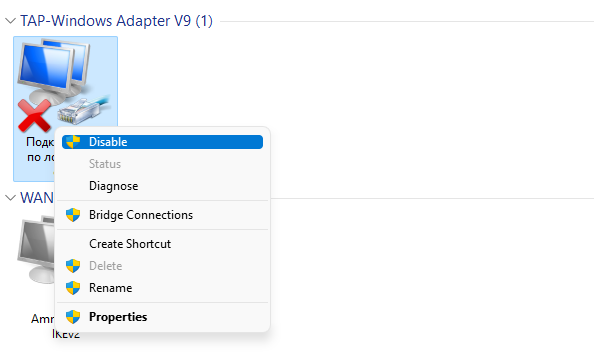
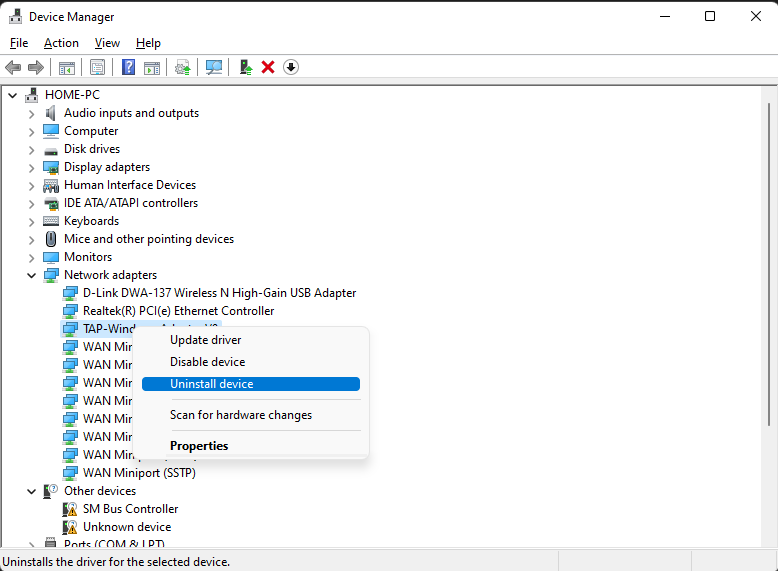
Go to "Network Adapters" and disable the TAP Adapter V9 adapter (created by AmneziaVPN), then remove it. If there are several adapters, remove them all.
-
Ensure that DHCP services are enabled on the device.
Instructions from the Microsoft website for different versions: -
Install any version of OpenVPN from 2.5.0 to 2.6.9 here.
-
Clear the cache of the AmneziaVPN application.
-
Try reinstalling the protocol.
Solution for Android
- Make sure your app version matches the protocol version. OpenVPN over Cloak connections created in version 2.1.2 do not work in newer versions of the app, and configurations created in newer versions do not work in version 2.1.2.
- Tap Exit or Close application in the AmneziaVPN settings, then reopen the app and try connecting again.
- Reboot the device.
Solution for iOS
-
Make sure your app version matches the protocol version. OpenVPN over Cloak connections created in version 2.1.2 do not work in newer versions of the app, and configurations created in newer versions do not work in version 2.1.2.
-
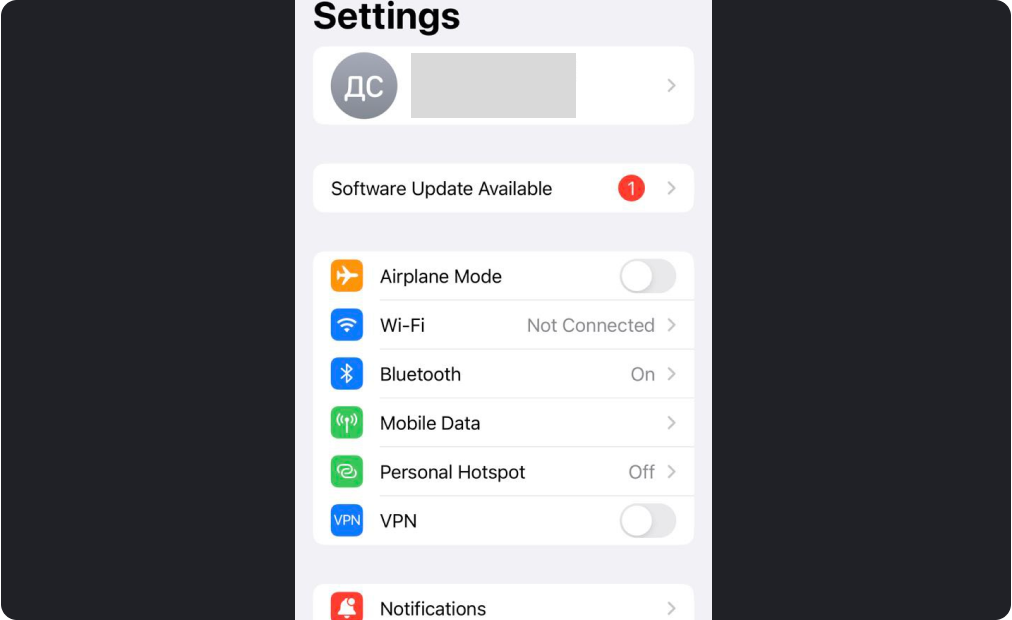
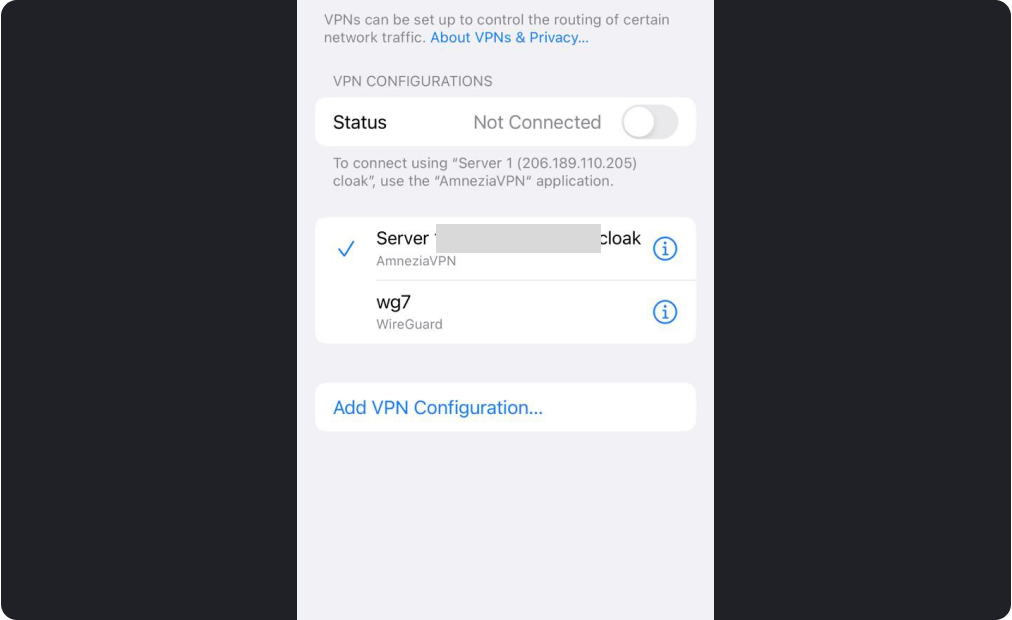
Try connecting to the VPN from system settings instead of from the app.
-
Go to the system VPN settings, remove the AmneziaVPN profile, and try to connect again.
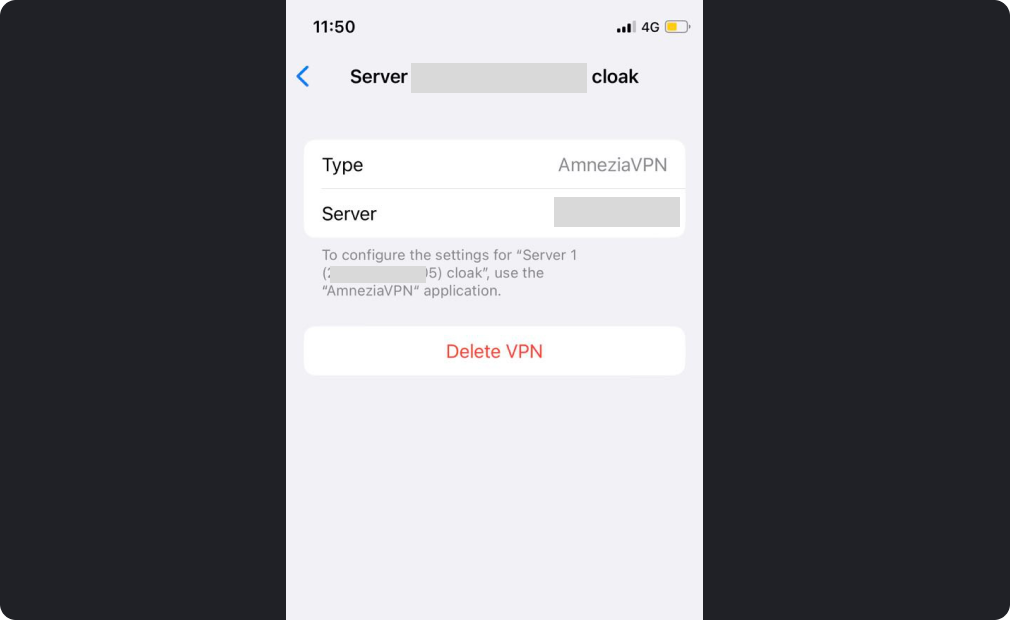
-
Ensure that the AmneziaVPN application has been granted permissions to use Wi-Fi and mobile data.
-
Reboot the device.
Solution for Linux
- Make sure the time on your device is correct. The system time should match the selected time zone.
- Reboot the device.