How to Share VPN Access
Overview
If you have set up a VPN on your server using the AmneziaVPN app, you can share either full or guest VPN access. Make sure you understand the difference between the two. In the app, these options are shown as Share full access to the server and VPN and Share VPN Access. In this guide, we use the shorter terms full access and guest access.
A full access key provides:
- full control of the server
- access to the VPN through any protocol installed on the server
- use on any number of devices
If a full access key is leaked, third parties could change the server's root password and lock you out completely. If this happens, the only way to get access back is to contact your hosting provider's support. To reduce this risk, we recommend creating full access connections only for your personal devices.
You cannot revoke or reset a full access connection key. If a key is leaked, change the server's root password right away and remove Amnezia protocols and services from the server.
Important limitations of guest access:
- it only allows the user to connect to the VPN and does not provide any server management access
- each guest connection works with only one VPN protocol, which is selected when the guest connection is created
- each guest connection can be used on one device only
If a guest connection is leaked, third parties may learn your server's IP address. They may also use the VPN and consume your server's bandwidth. Unlike full access, a guest connection can be revoked at any time.
How to Share Guest Access
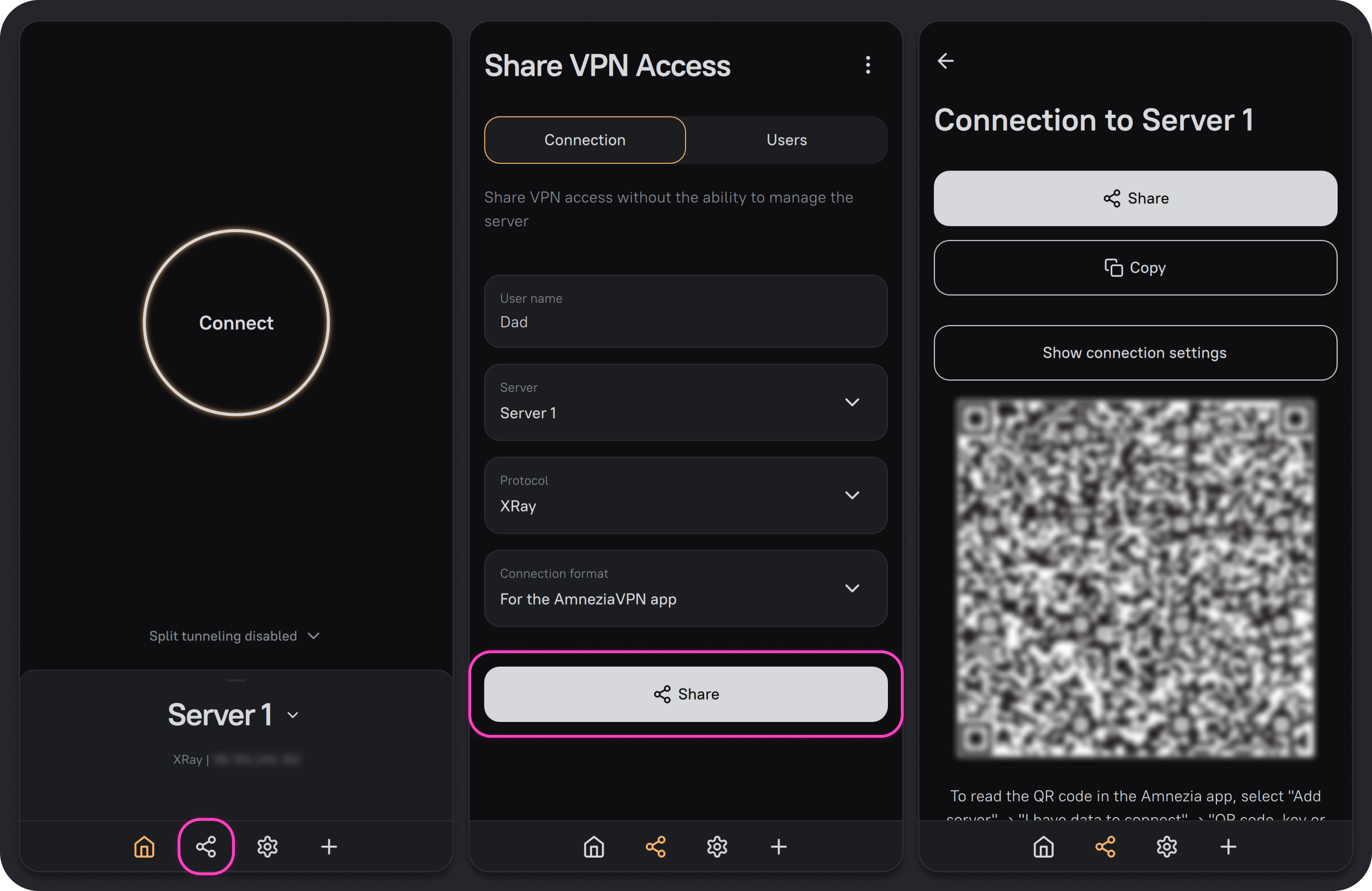
- Open the AmneziaVPN app with an existing full access connection to the server, then click the Share icon on the bottom bar to the left of the gear icon.
- Enter the user name for the person you are sharing access with (the name can be changed later), select the server if you have more than one, then choose the VPN protocol and connection format. Then click Share.
The difference between the connection formats:
- for the AmneziaVPN app — a
vpn://...connection key. It cannot be used in the AmneziaWG app or to set up a VPN on a router - AmneziaWG native format — a
.confconfiguration file. It can be used in the AmneziaWG app or to set up a VPN on a router
Each guest connection key or configuration file works with only one specific protocol, which you choose at this step.
- Choose how you want to share the connection. The available options depend on the connection format you selected in the previous step:
-
Click Share to save a file or send it to a contact:
amnezia_config.vpncontains only thevpn://...connection keyamnezia_for_awg.confcontains connection parameters such as J, S1-S4, H1-H4, I1-I5, and others
-
Click Copy to copy either the
vpn://...connection key or all the connection parameters that would normally be stored in a.conffile. -
Scan the QR code on another device in the AmneziaVPN app to create a guest access connection to the server.
The QR code cannot be scanned if you selected AmneziaWG native format in the previous step. We recommend using another sharing method.
-
How to Revoke Guest Access
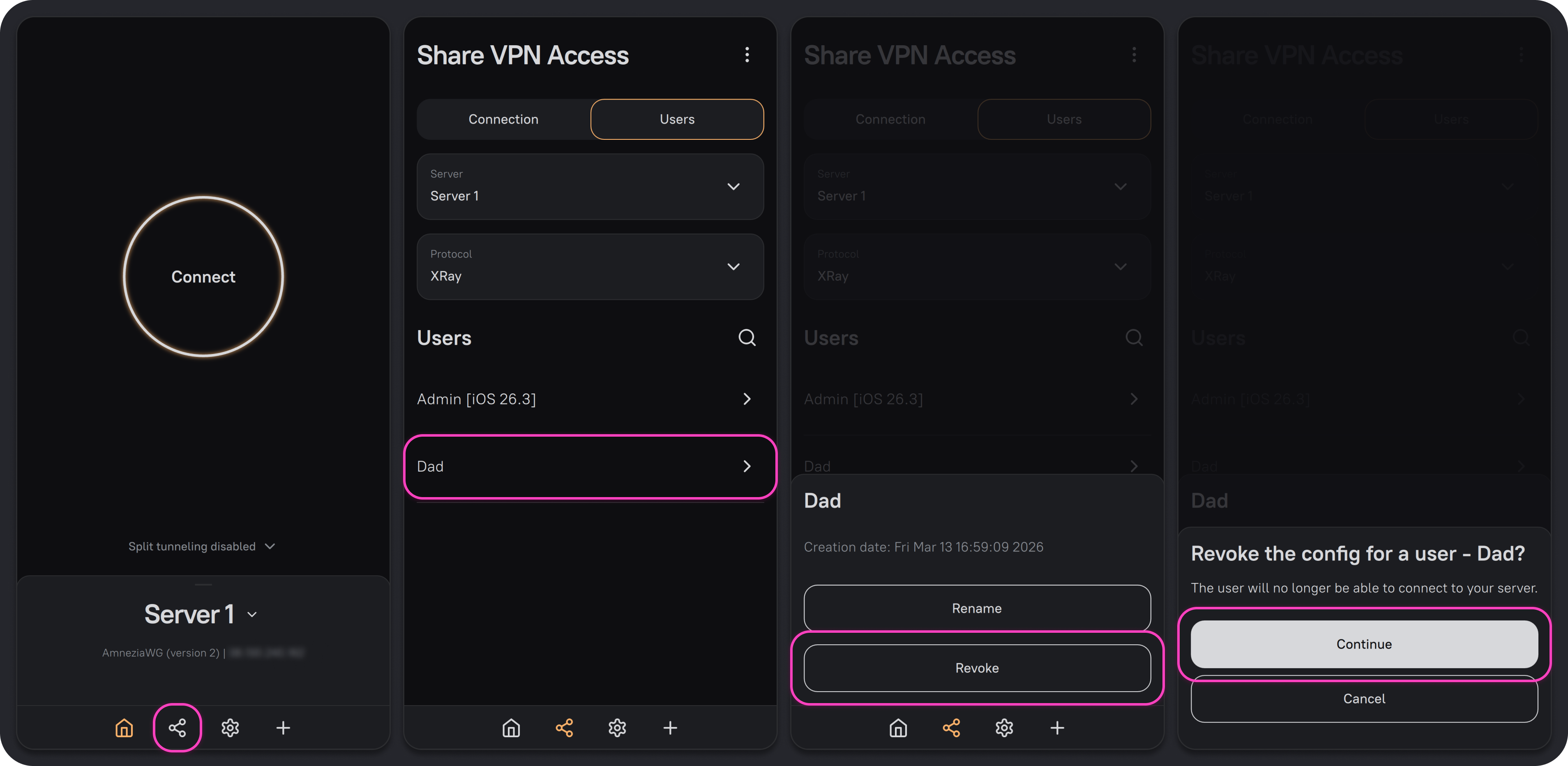
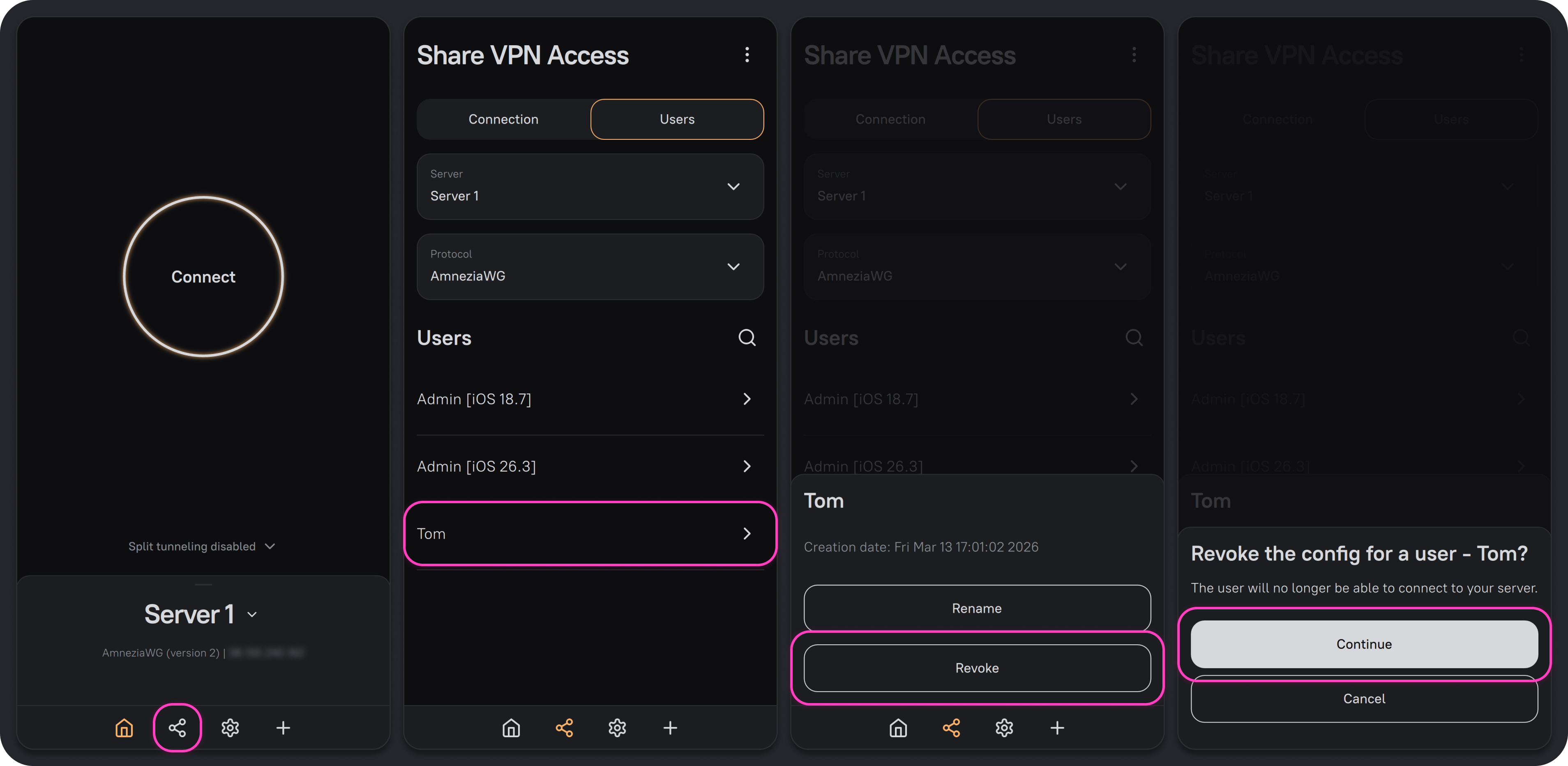
- Open the AmneziaVPN app with an existing full access connection to the server, then click the Share icon on the bottom bar to the left of the gear icon.
- Go to the Users tab, select the server and VPN protocol, then click the user whose access you want to revoke.
- Click Revoke, then Continue.